Basic
Adding Events
Learn how to add a new event to Simple Calendar, step by step.
How to add an event
1
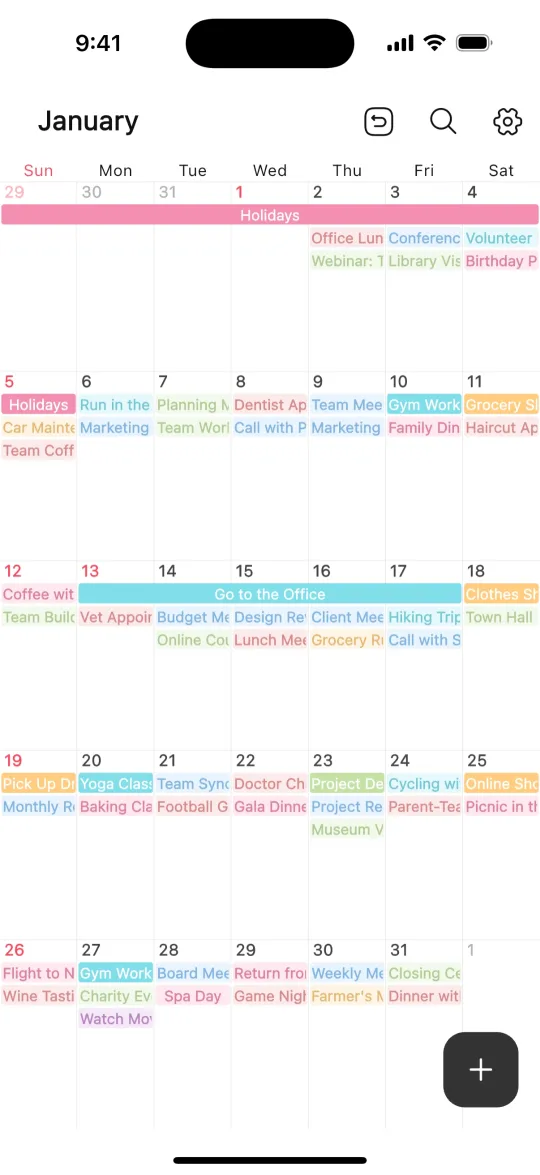
Tap the "+" button on the calendar
Tap the "+" button at the bottom right of the calendar screen to open the event creation screen.
2
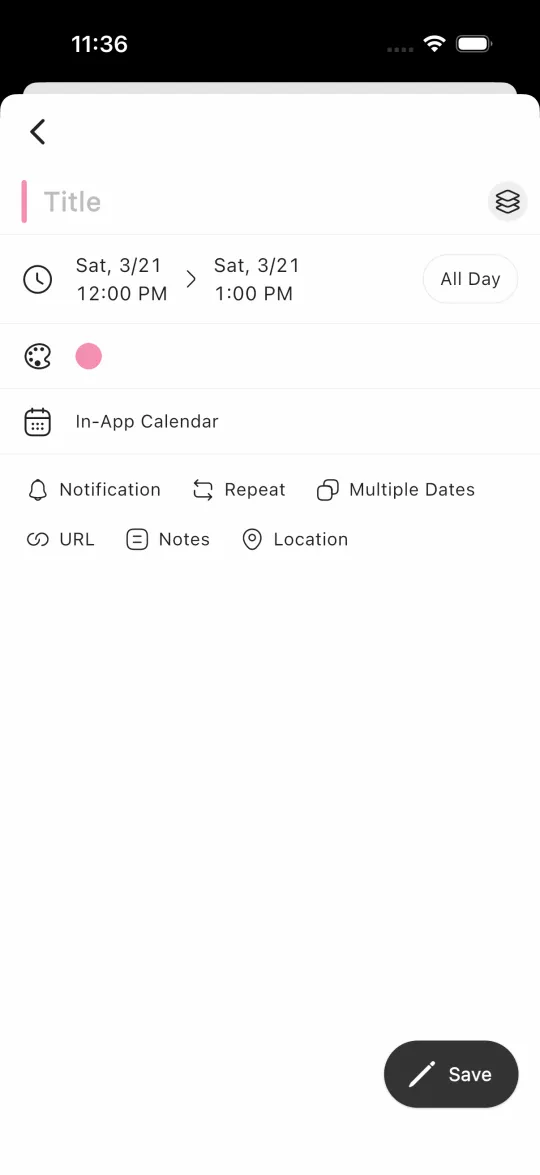
Enter details and tap "Save"
Set the title, date/time, and color, then tap "Save" at the bottom right to finish. Toggle "All Day" for full-day events.
Tip
You can also set notifications, repeats, notes, URL, and location from this screen.