Basic
Editing & Deleting Events
Learn how to edit and delete events in Simple Calendar, step by step.
How to edit & delete events
1
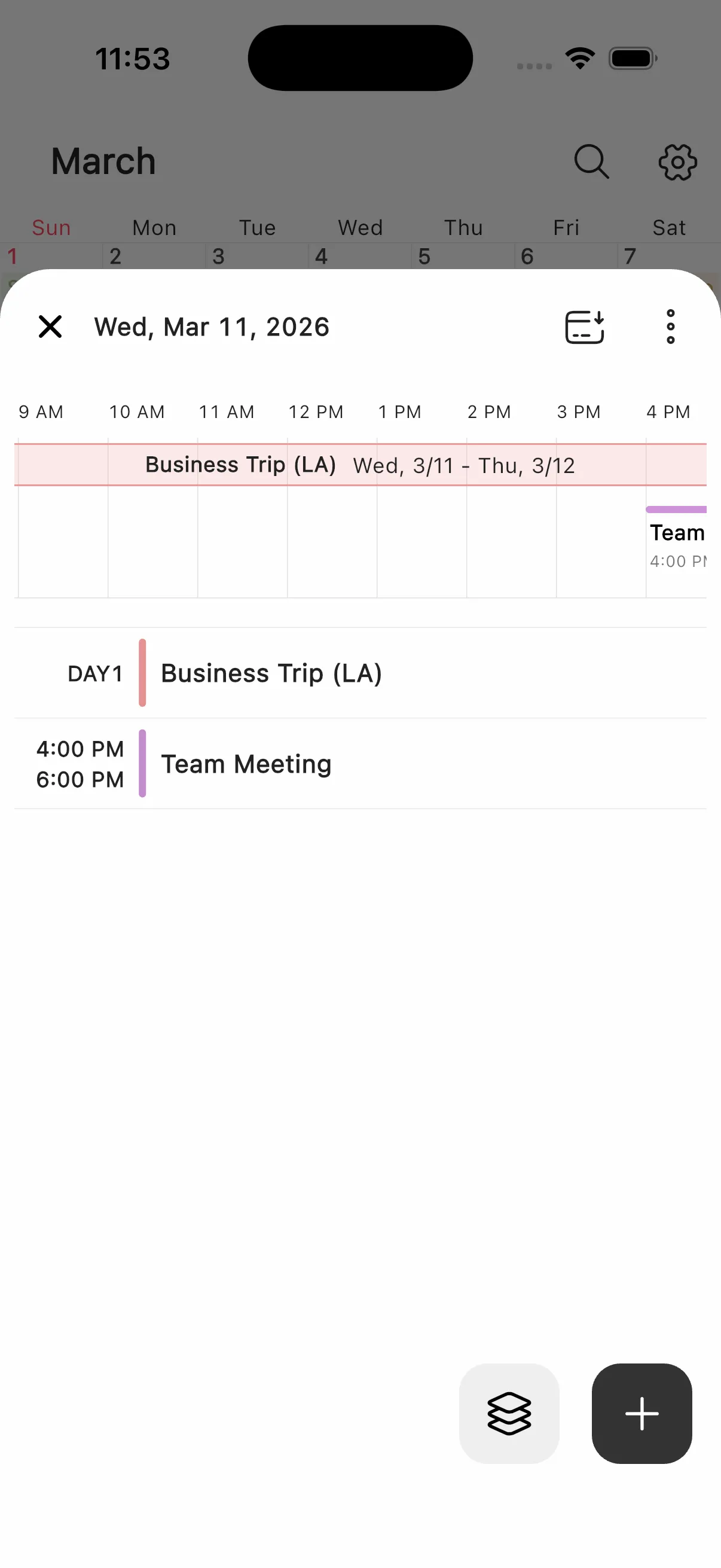
Tap an event on the calendar
Tap a date on the calendar to see the list of events for that day. Tap the event you want to edit to open the editing screen.
2
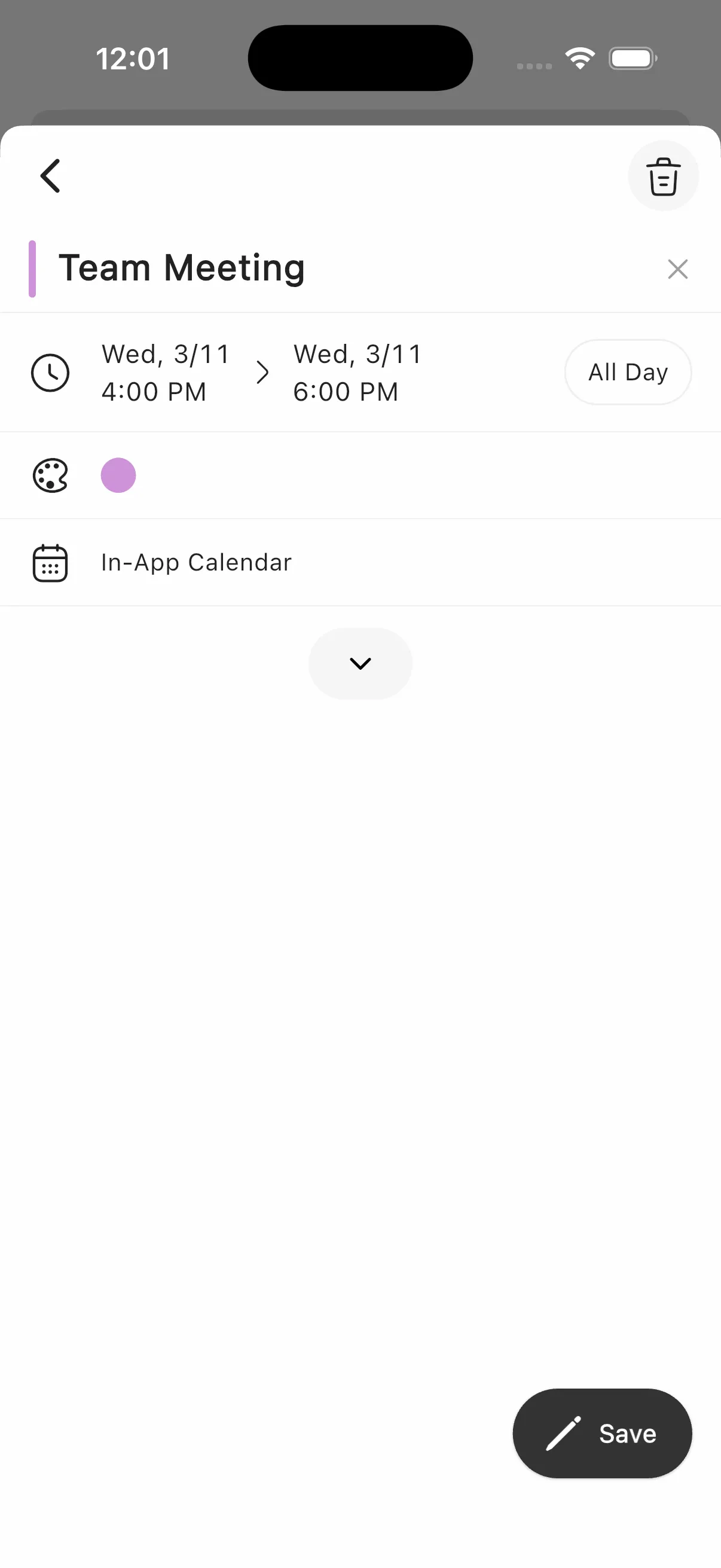
Make changes and tap "Save"
Edit the title, date/time, color, notifications, repeat settings, notes, or any other fields you want to change. Tap "Save" when you're done.
Tip
You can also edit location, URL, and notes from the same screen.
3
Delete an event
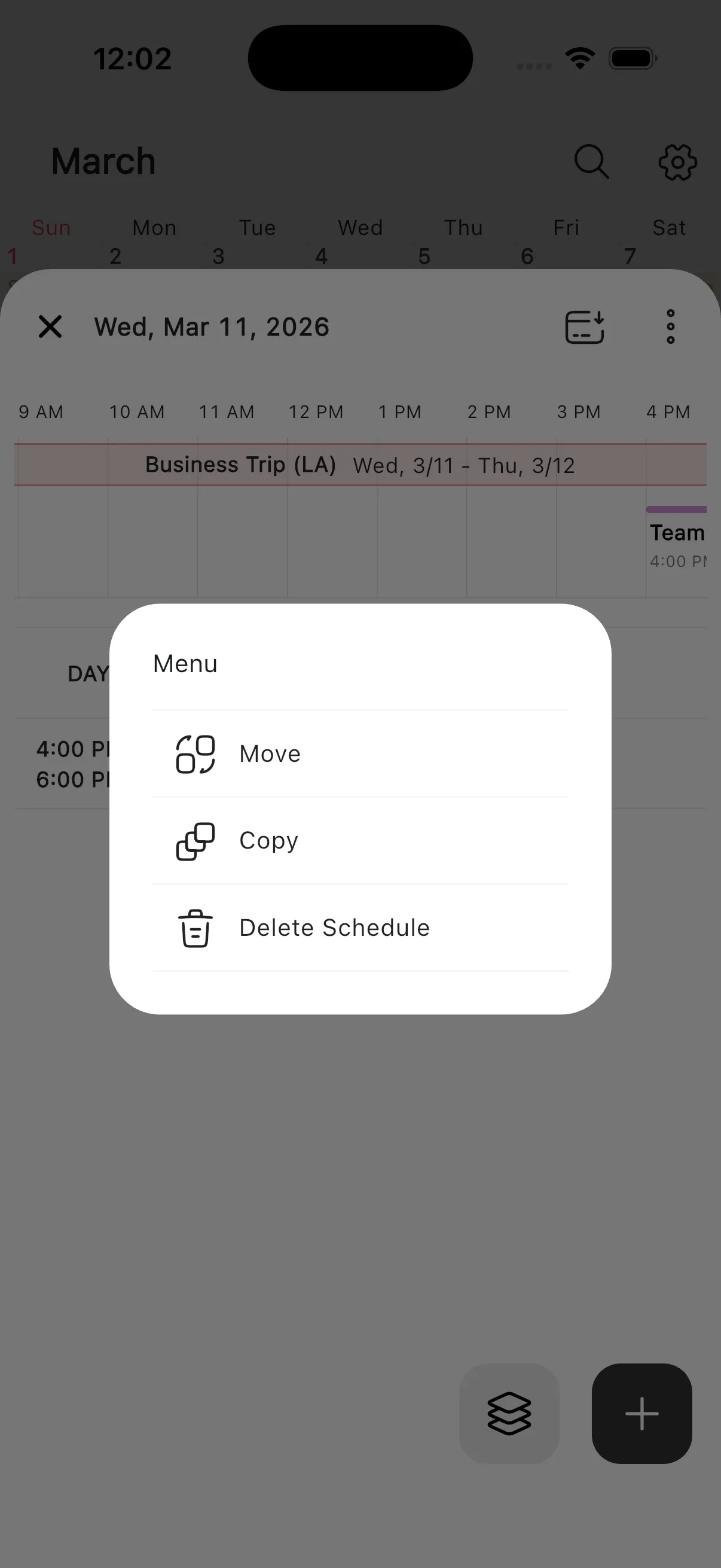
Swipe left on the event in the event list and tap the menu button. Select "Delete" from the menu to see a confirmation dialog. You can also delete from the trash icon at the top right of the editing screen.
Tip
For repeating events, you can choose to delete only this event or all future occurrences.