Customize
Appearance
Learn how to customize Caly appearance settings such as text size, start day of week, and holidays.
How to change appearance settings
1
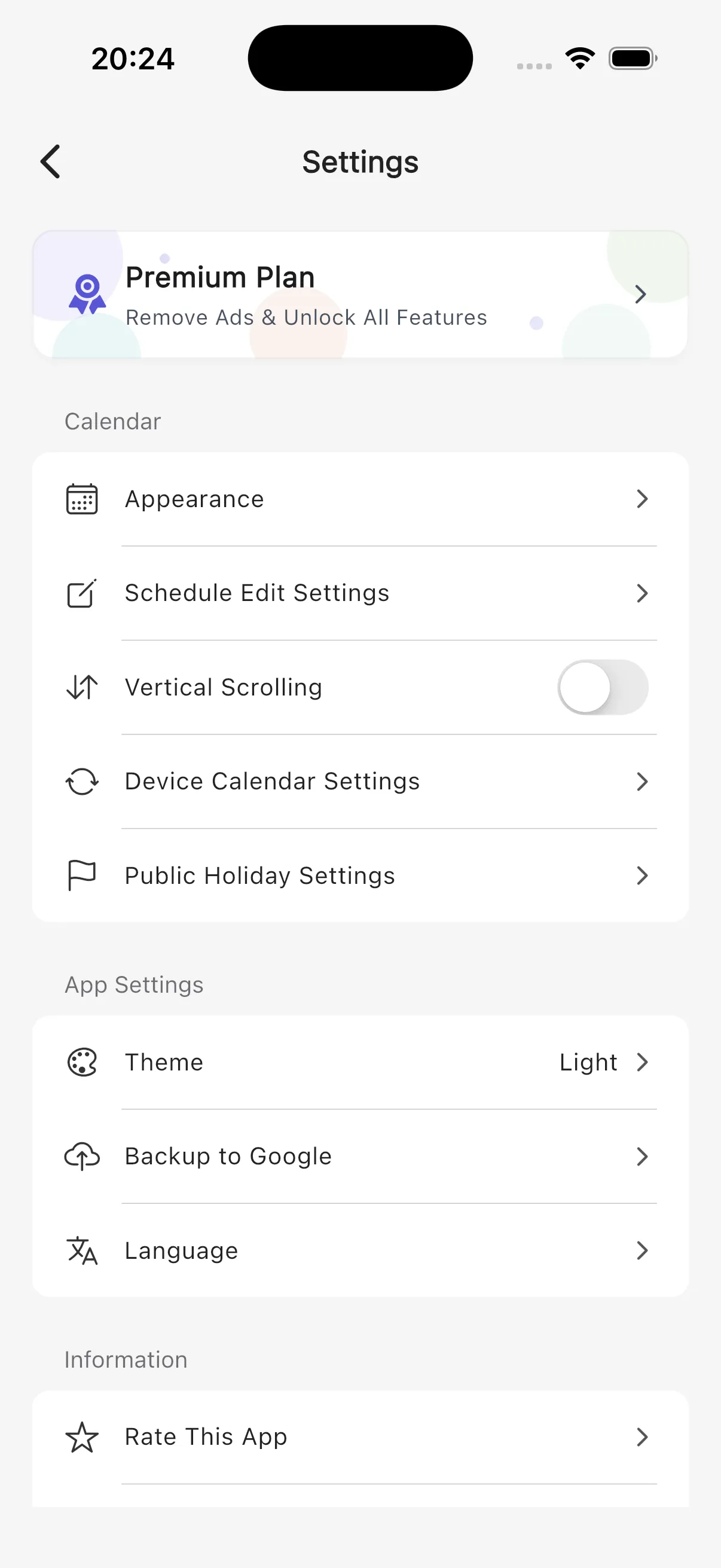
Open "Appearance" from Settings
Tap the gear icon at the top right of the calendar screen to open Settings, then select "Appearance."
2
Customize display settings
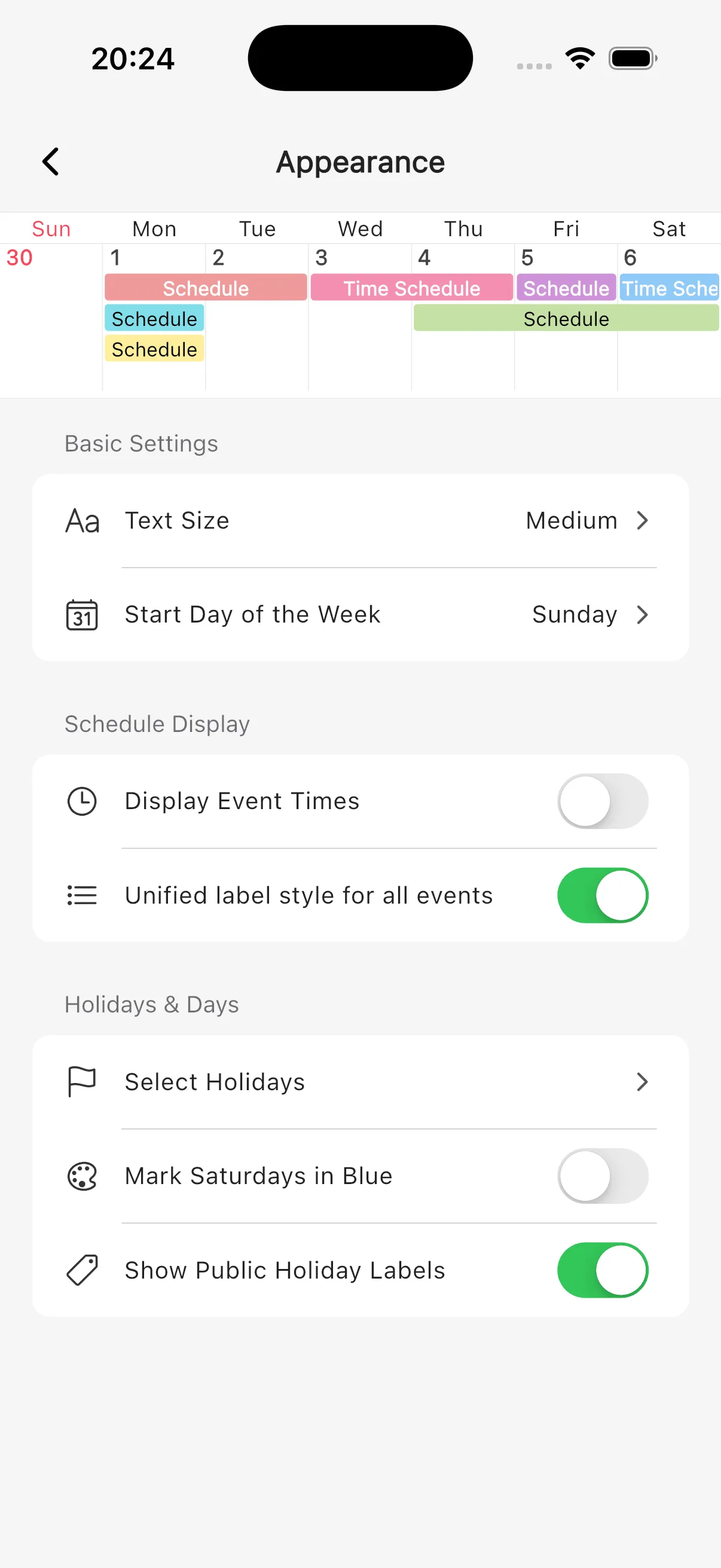
You can customize the following items:
Basic Settings
- Text Size — 5 levels: Extra-Small / Small / Medium / Large / Extra-Large
- Start Day of the Week — Sunday / Monday
Schedule Display
- Display Event Times — Show or hide the start time on event bars
- Hide Vertical Lines — Remove the lines between days for a cleaner look
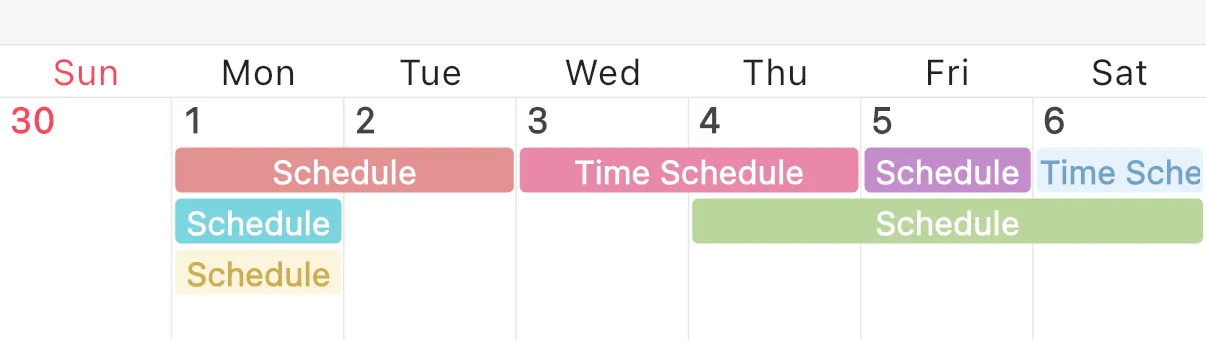
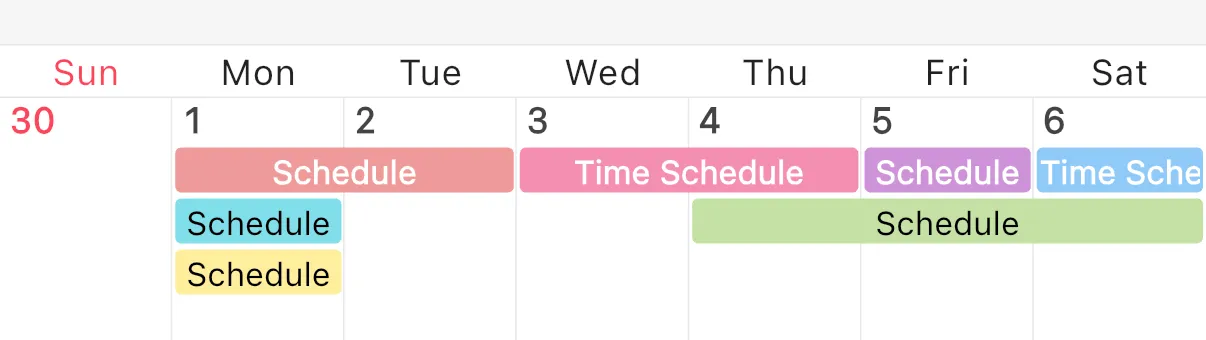
- Unified Label Style for All Events — Use the same color bar style for both all-day and timed events
▼ Unified label style OFF
▼ Unified label style ON
Holidays & Days
- Select Holidays — Choose which days of the week to display in red as holidays (default: Sunday)
- Mark Saturdays in Blue
- Show Public Holiday Labels