Customize
Widget Setup (Android)
Learn how to add and customize Simple Calendar widgets on your Android home screen.
How to set up widgets on Android
1
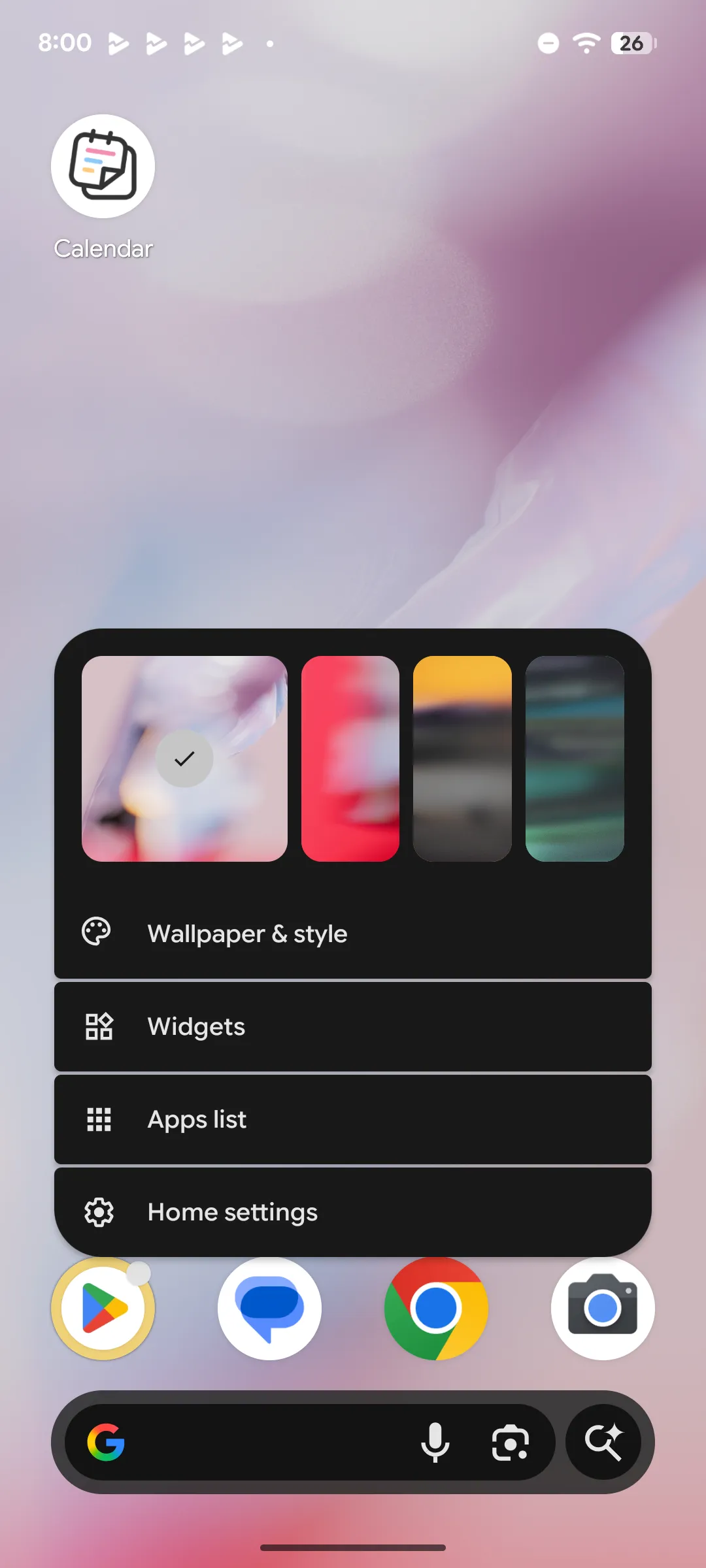
Long-press the home screen and select "Widgets"
Long-press the home screen and select "Widgets" from the menu that appears.
2
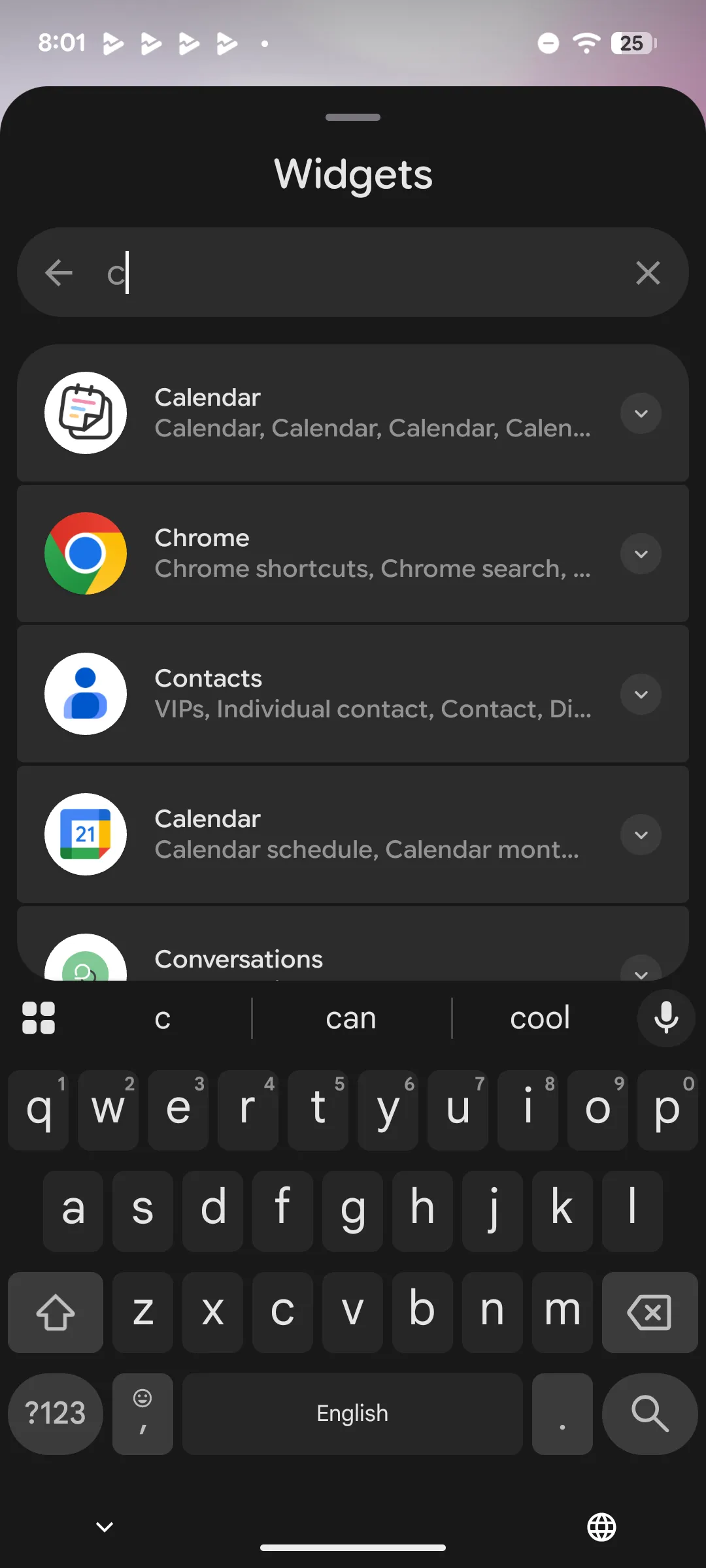
Search for "Calendar" and select the app
Type "Calendar" in the search bar of the widget list, then select the Calendar icon from the results.
3
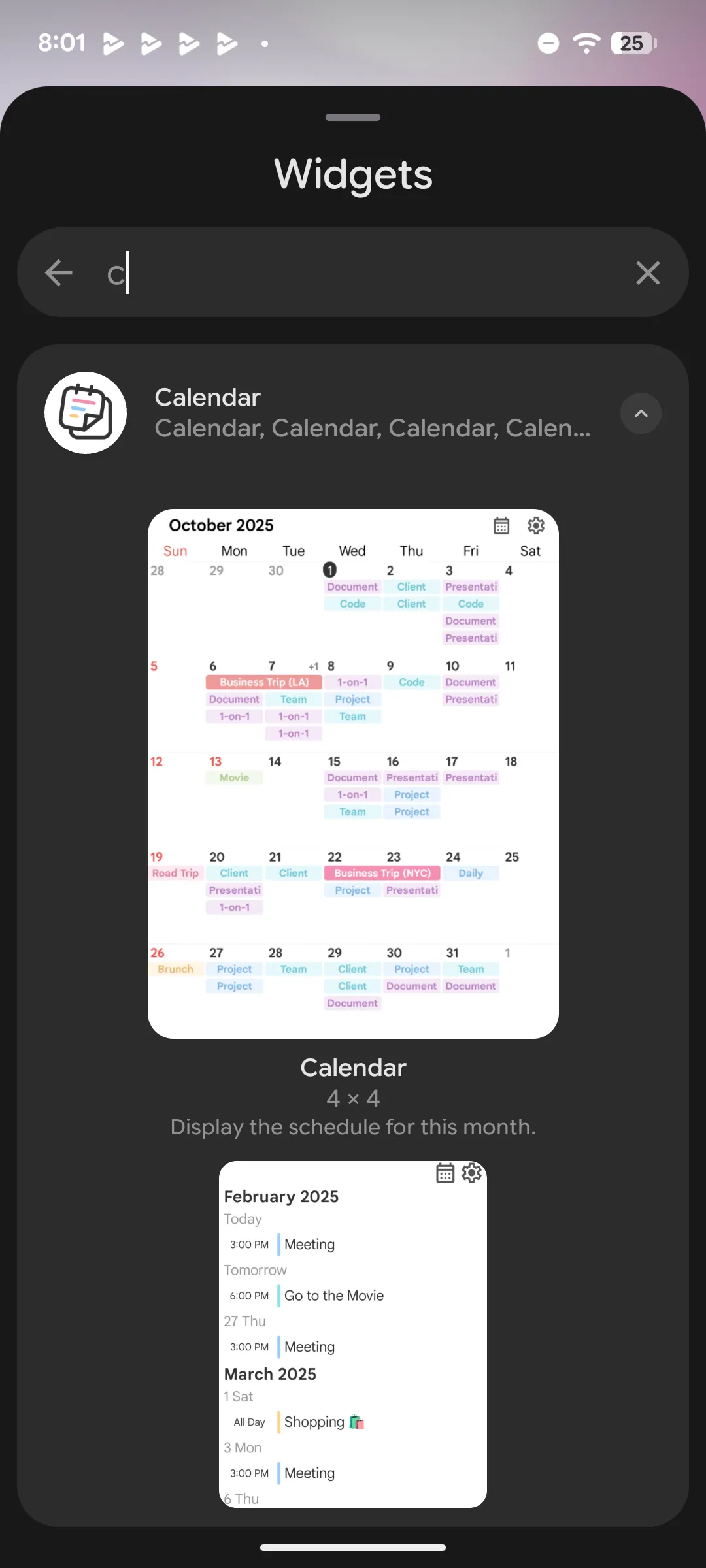
Choose your preferred widget and place it
Choose from 4 types — monthly calendar, 1-week, 2-week, and event list — and drag it to your home screen to place it.
Tip
Settings can be changed anytime via the gear icon on the widget. You can customize background opacity, text color, and dark mode. Widgets update approximately every hour, or whenever you make changes to events in the app.