Customize
Widget Setup (iOS)
Learn how to add Simple Calendar widgets to your iOS home screen for quick access to your events.
How to set up widgets on iOS
1
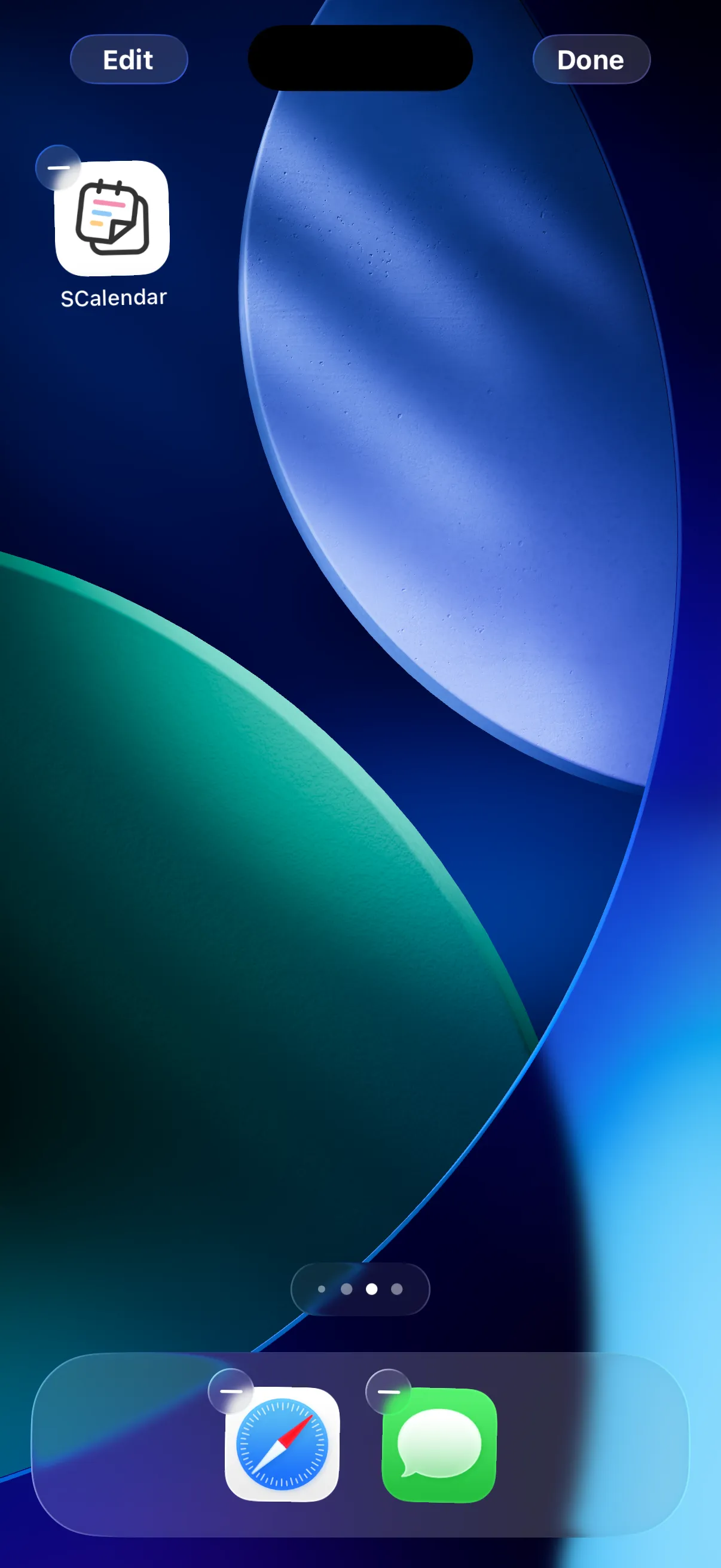
Long-press the home screen to enter edit mode
Long-press an empty area on the home screen until the icons start to jiggle, entering edit mode.
2
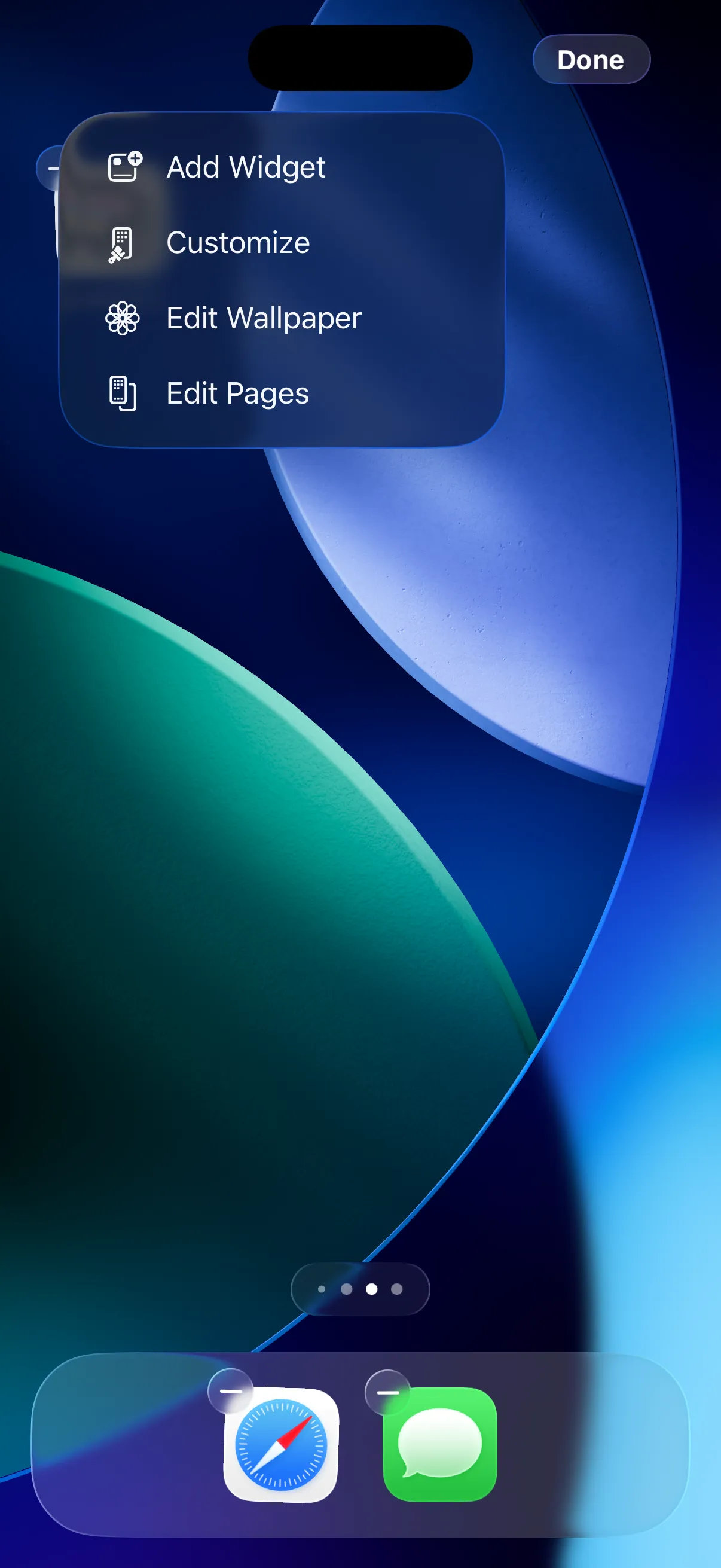
Tap "Edit" and select "Add Widget"
Tap the "Edit" button at the top left, then select "Add Widget" from the menu to open the widget gallery.
3
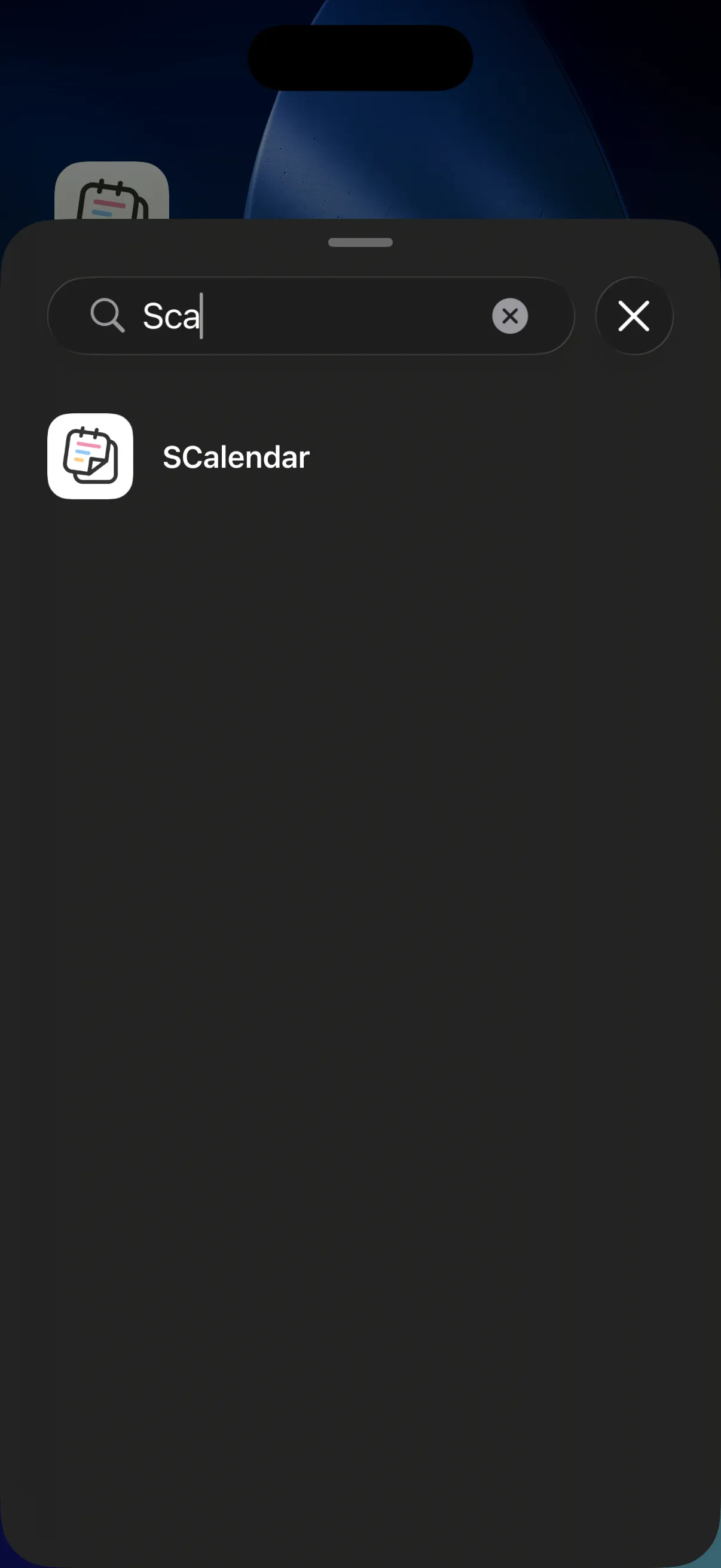
Search for "SCalendar"
Type "SCalendar" in the search bar of the widget gallery, then tap the app when it appears.
4
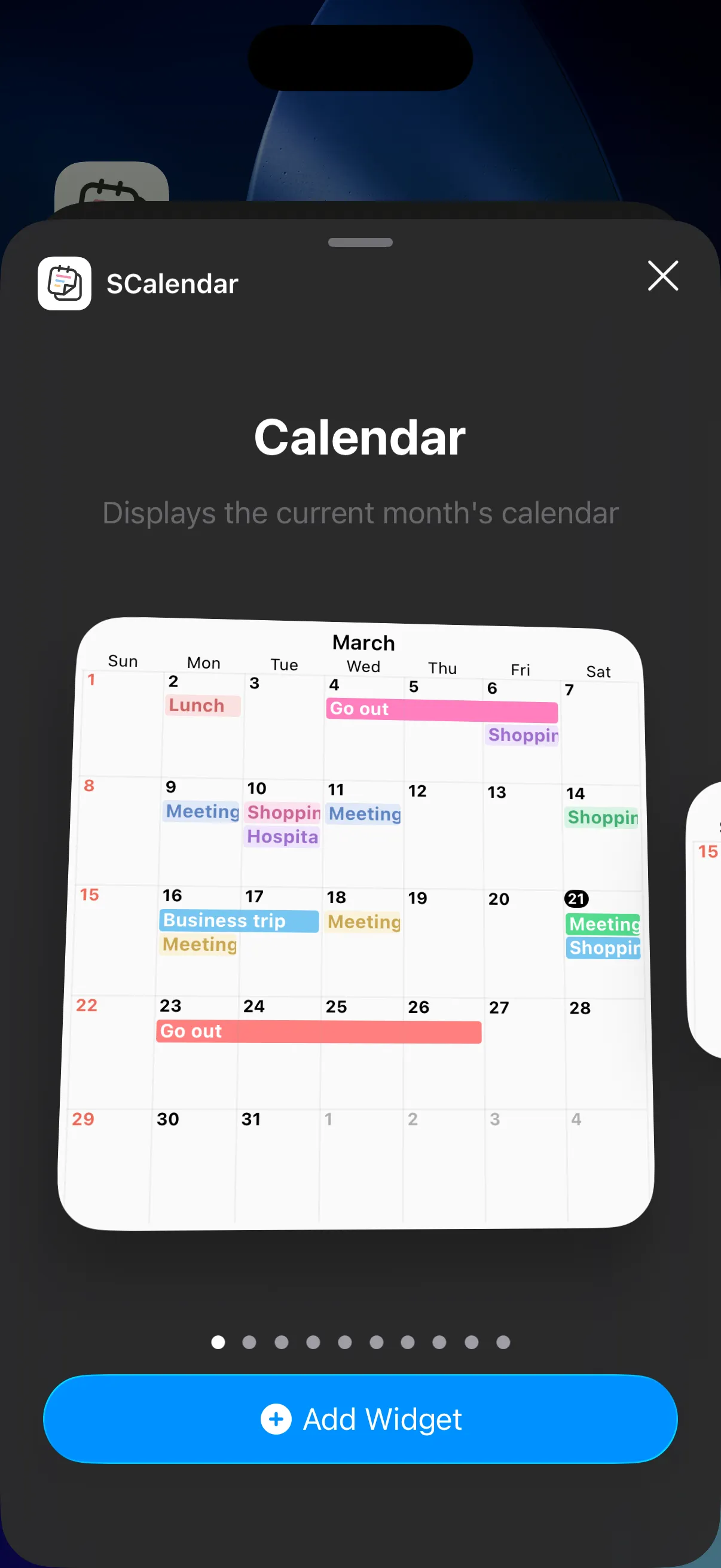
Choose your preferred widget and add it
Swipe left and right to browse the available sizes and types, then tap "Add Widget" to place it. Choose from 11 types including monthly calendar, 2-month, weekly, daily, and lock screen widgets.
Tip
Your app settings (theme, start day of week, font size, etc.) are automatically reflected in the widget. Widgets update approximately every hour, or whenever you make changes to events in the app.