Data
Calendar Sync
Learn how to sync Simple Calendar with the iOS standard calendar (iCloud, Google Calendar, etc.). *iOS only
How to sync your calendar
1
Open "Device Calendar Settings" from Settings
Tap the gear icon at the top right of the calendar screen to open Settings, then select "Device Calendar Settings." You'll be asked to allow calendar access the first time — please grant "Full Access."
Tip
This feature is available on iOS only. It is not supported on Android.
2
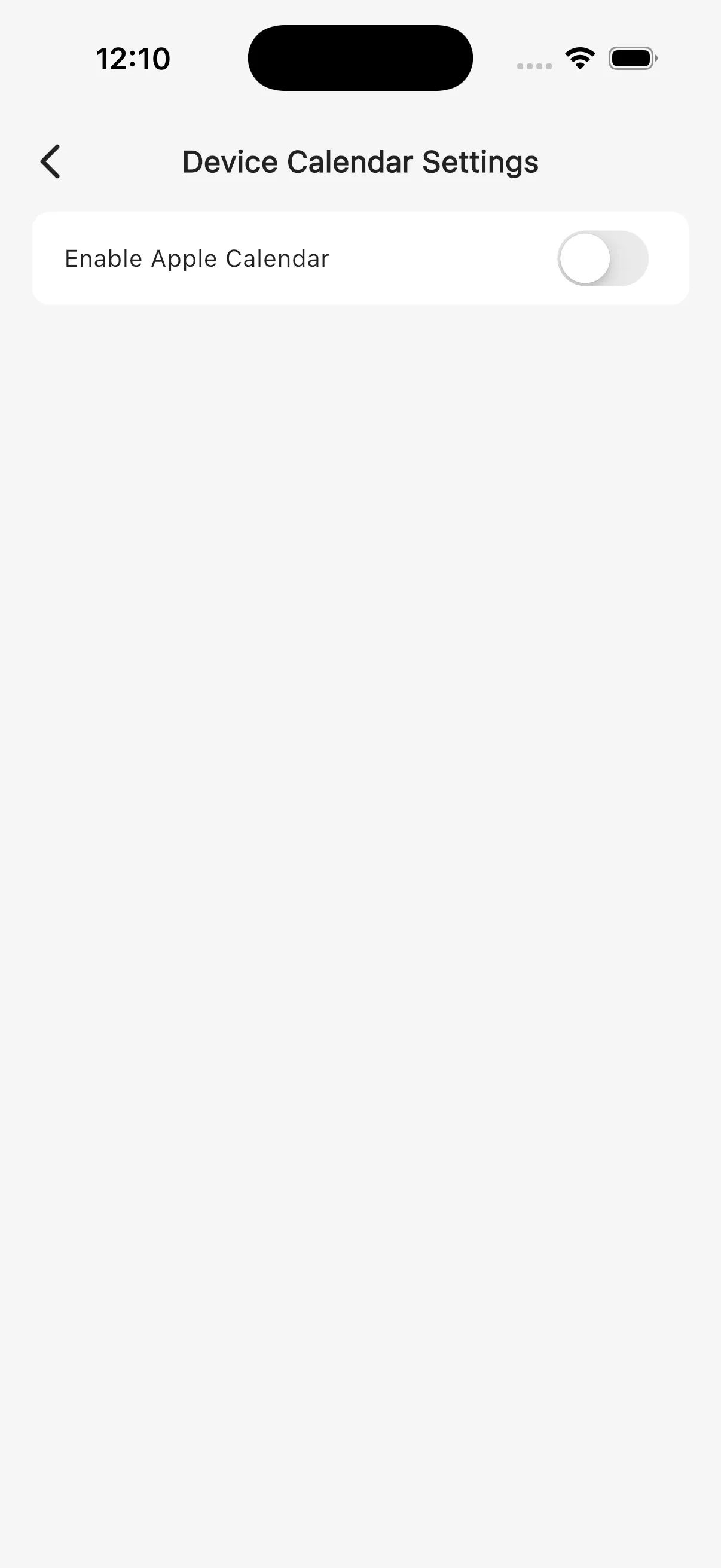
Turn on "Enable Apple Calendar"
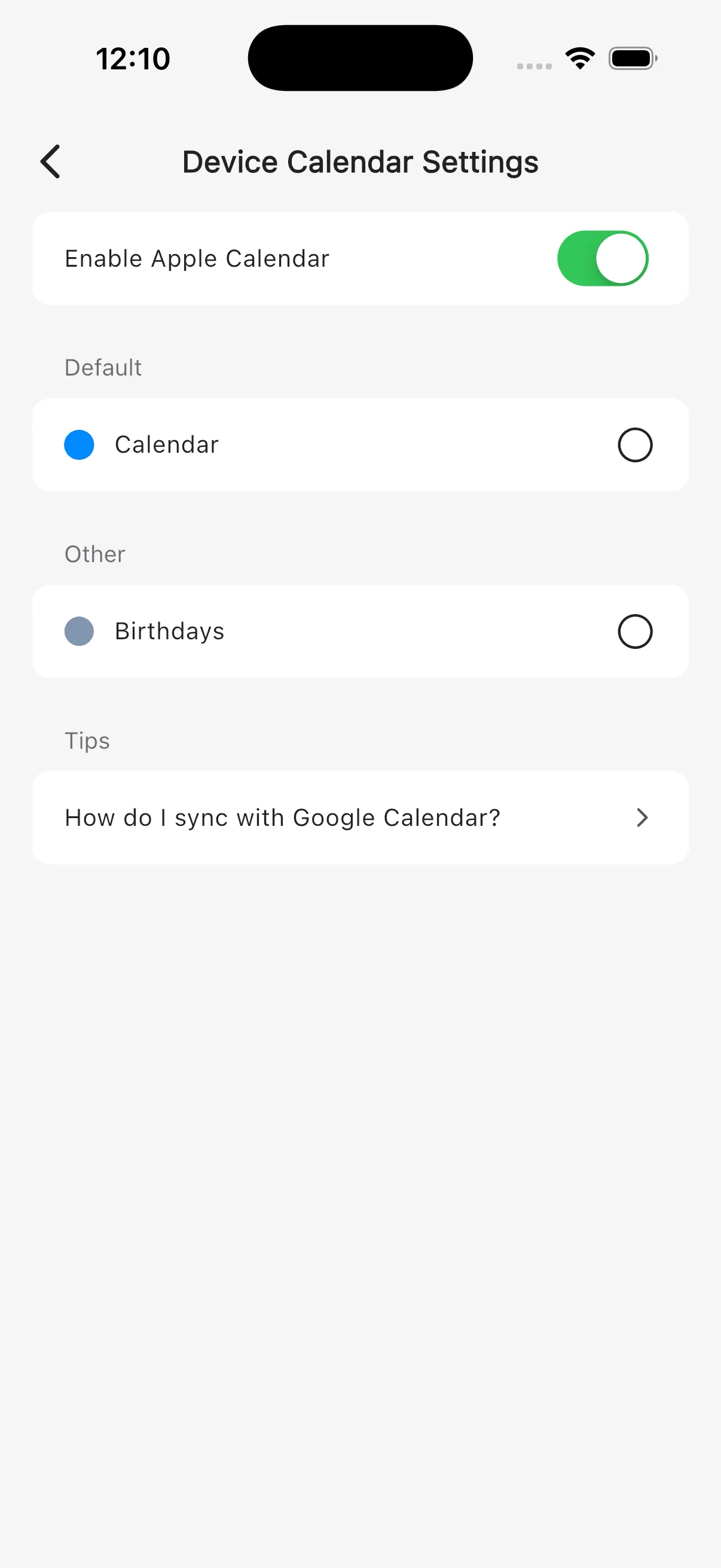
Toggle the switch on to see a list of calendars registered on your device (iCloud, Google account, etc.). Select the calendars you want to sync, and their events will appear in Simple Calendar. When adding new events, you can also choose a device calendar as the save destination.
Tip
To sync with Google Calendar, you need to add your Google account in iOS Settings first.