Data
Calendar Sync
Learn how to sync Caly with the iOS standard calendar (iCloud, Google Calendar, etc.). *iOS only
How to sync your calendar
1
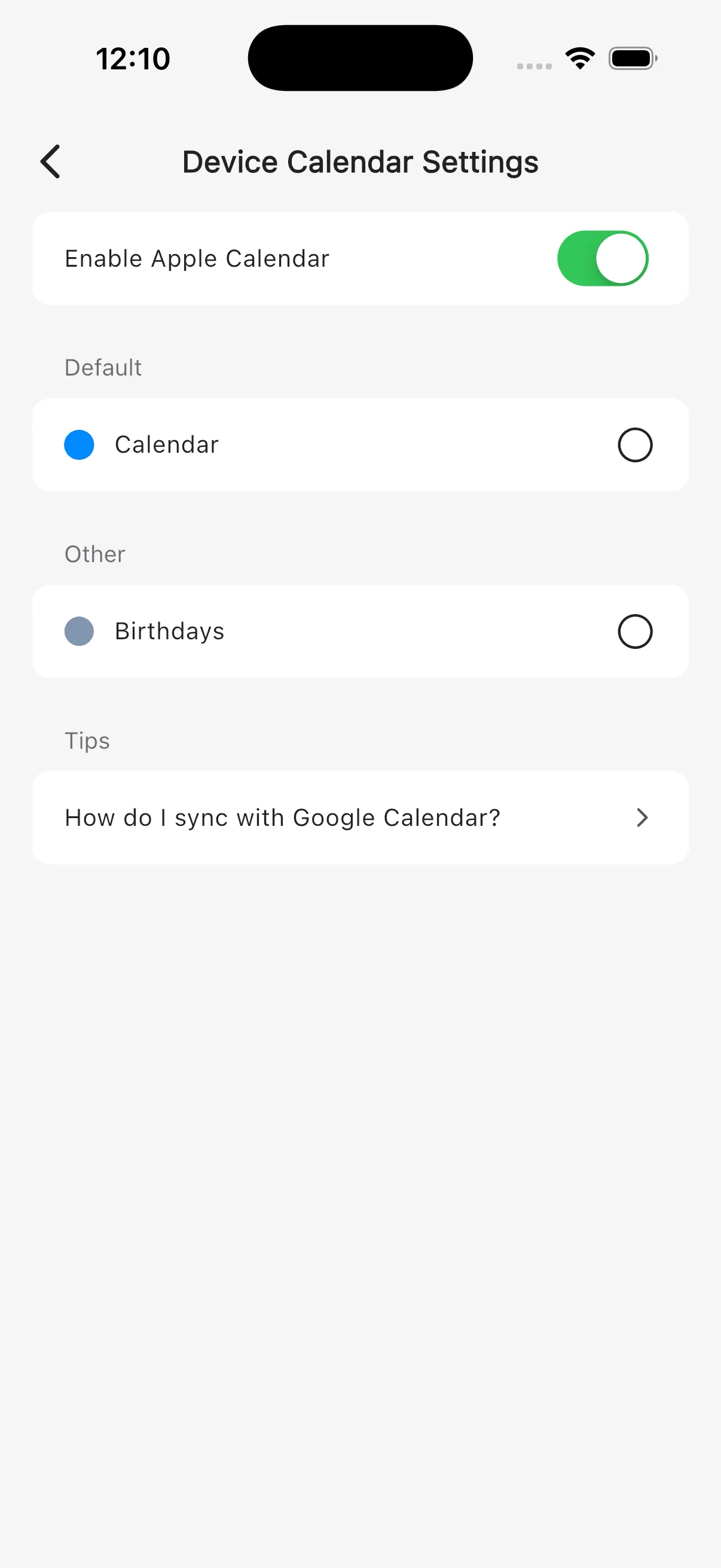
Open "Apple Calendar Sync" from Settings
Tap the gear icon at the top right of the calendar screen to open Settings, then select "Apple Calendar Sync."
Tip
This feature is available on iOS only. It is not supported on Android.
2
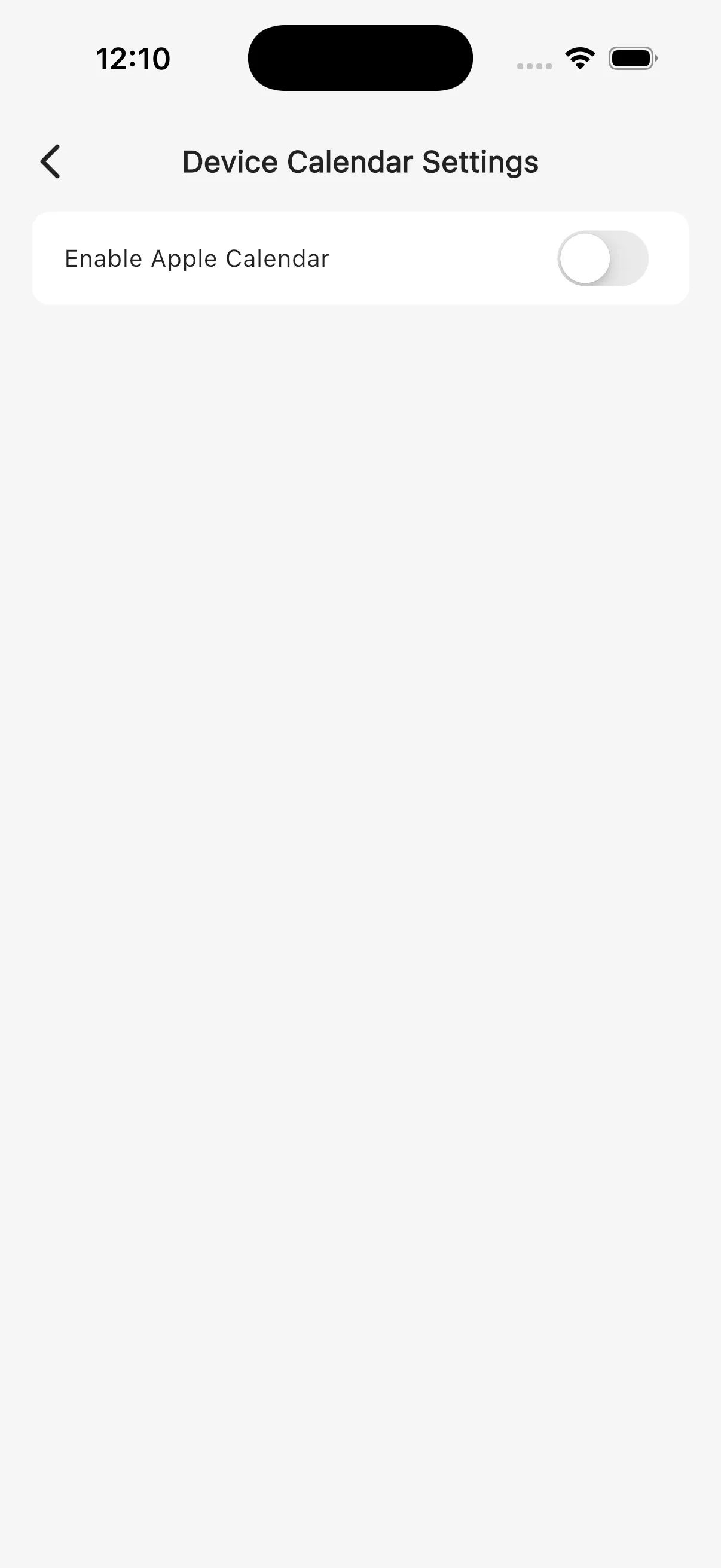
Tap "Sync" and choose the calendars to show
The first time, tap "Sync" and grant "Full Access" when asked for calendar access. A list of calendars registered on your device (iCloud, Google account, etc.) appears. Select the calendars you want to show, and their events will appear in Caly. When adding new events, you can also choose a device calendar as the save destination.
Tip
To sync with Google Calendar, you need to add your Google account in iOS Settings first.